Getting started
What you need
Node 22+, git on PATH, and either curl or wget, plus tar. That is the whole hard list.
On Linux with a systemd user session the installer also registers a service that keeps the app running. On macOS that step is skipped automatically, you start the app yourself (step 2). Optional niceties: gio so file-browser deletes go to the trash instead of being permanent, and a GitHub CLI (gh) login if you want your issues and pull requests on the dashboard (step 6).
Install
One line:
curl -fsSL https://welcome-workspace.dbuild.dev/install.sh | sh
What the script actually does, in order:
- Checks Node 22+, curl or wget, and tar
- Resolves the latest GitHub release (or the one you pinned with
--version) - Verifies the download against the release's
SHA256SUMS.txt; a mismatch aborts before anything is installed - Installs to
~/.local/share/workspace-welcome/app - Writes a
.env(PORT, HOST) next to the app - Installs and starts the systemd user service (Linux; skip with
--no-service)
Your config is never touched, not on install, not on upgrade. Piping curl to sh is a trust decision; read the script first if you haven't. To watch every step without changing anything:
curl -fsSL https://welcome-workspace.dbuild.dev/install.sh | sh -s -- --dry-run
Don't want the pipe at all? Every release ships one tarball per platform plus a SHA256SUMS.txt; step 9 walks the manual path.
First launch
Open http://localhost:37420. On Linux the service is already running (macOS: node serve-prod.mjs inside the app directory).
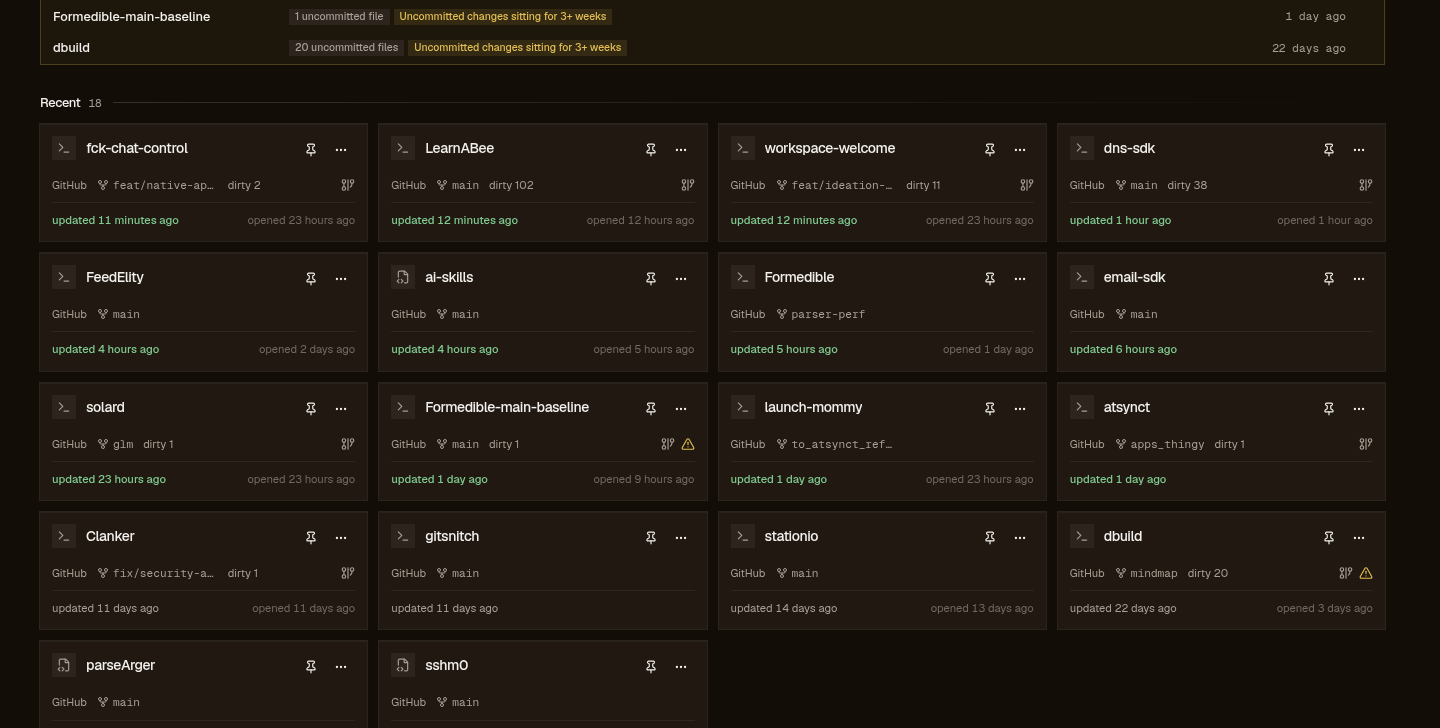
You land on an empty board. The masthead is the control strip: the board and scheme pickers (three boards, each with a light and a dark scheme), then Add directory, Create project, Generate report, Clone script, Rescan, and Settings. The filter field takes / from anywhere on the page.
The board is a grid you shape: every panel drags, resizes, and sheds, and the arrangement persists. mission-control (the default) is a fleet ledger with a triage panel, bento is a mosaic with the workspace pulse, meadow lays digests on a daylight ground. New panels land over releases.
Add a root
Click Add directory and pick a folder: ~/workspace, ~/src, wherever your repos are. That folder becomes a root; its immediate subdirectories are your projects. Not recursive: a project is a directory you would cd into. Roots are managed under Settings too.
The first scan runs immediately and fills the board. Each project gets its filesystem dates (created / last touched), a stack guess (Node, Python, Rust, …), its git state (branch, ahead/behind, dirty files, last commit, remote), and any health alerts the state implies. Click through to a project and pin it, hide it, or leave a note; those overrides live in the database, never in your repos.
Rescans are cheap: a per-project fingerprint means only what actually moved gets re-read, and a new project directory appears on the next scan by itself.
The seven alerts
The scanner emits seven alerts, and the boards roll the loud ones into a triage / needs-attention panel so the worst ones surface first:
| Severity | Alert | Means |
|---|---|---|
| ERR | diverged | Ahead of and behind the upstream at once; a push will not go through cleanly |
| WRN | no-remote | No remote configured: work that exists only here |
| stale-wip | Uncommitted changes sitting for 3+ weeks | |
| INF | behind | Commits behind upstream: pull before you branch |
| unpushed | Local commits no remote has seen | |
| dirty | Uncommitted files in the tree | |
| dormant | No activity in 90+ days: archive candidate |
Everything on the board also carries a recency heat: the little LED beside each project goes from fresh to stale over roughly 90 days: so the dust settles visually even where no alert fires.
Open a project
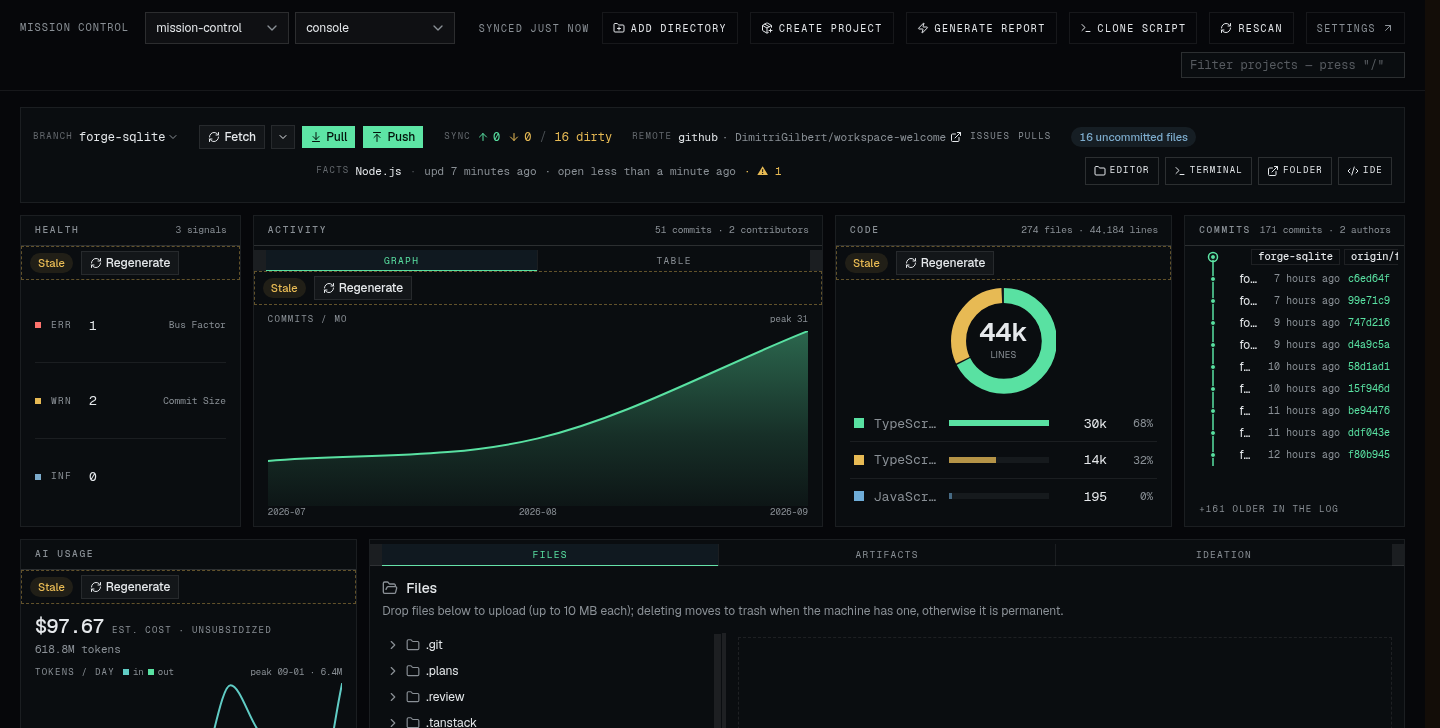
Click any project. The top band is the git cockpit: branch switcher (with a safety probe when switching would clobber something), fetch / pull / push, the sync status (↑ ahead ↓ behind / dirty), the remote deep-link, and quick-open buttons for editor, terminal, folder, and the browser IDE.
Below that, the work surface: health signals, activity and code-mix charts, the commit history, the Where I left off note, a Report button (a self-contained git-snitch HTML file), and three tabs: files (a browser confined to the project subtree), artifacts (your build/test screenshots and videos, from folders you configure on that tab), and ideation (an AI interview that grills an idea one question at a time, then writes a PRD and an implementation plan into the project's docs/).
Sync your GitHub issues and pull requests
If a project's remote is on GitHub, its open issues and PRs can sit beside everything else. The fetch runs through your own gh CLI, so first:
gh auth status # must succeed: the app probes this and refuses honestly if it fails
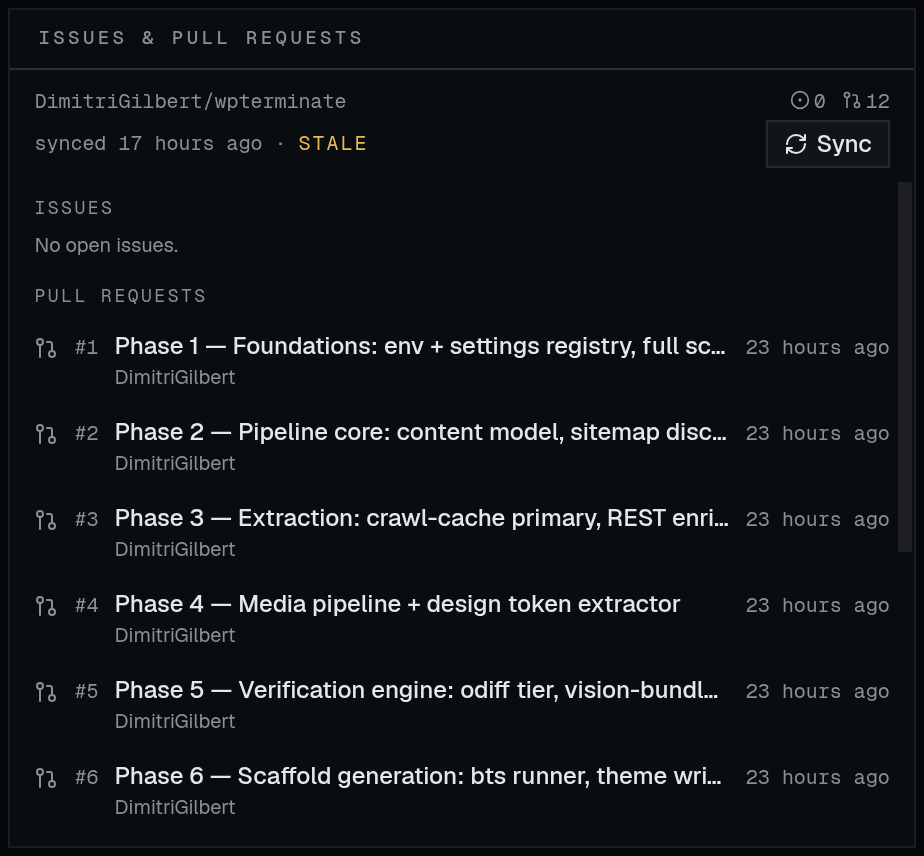
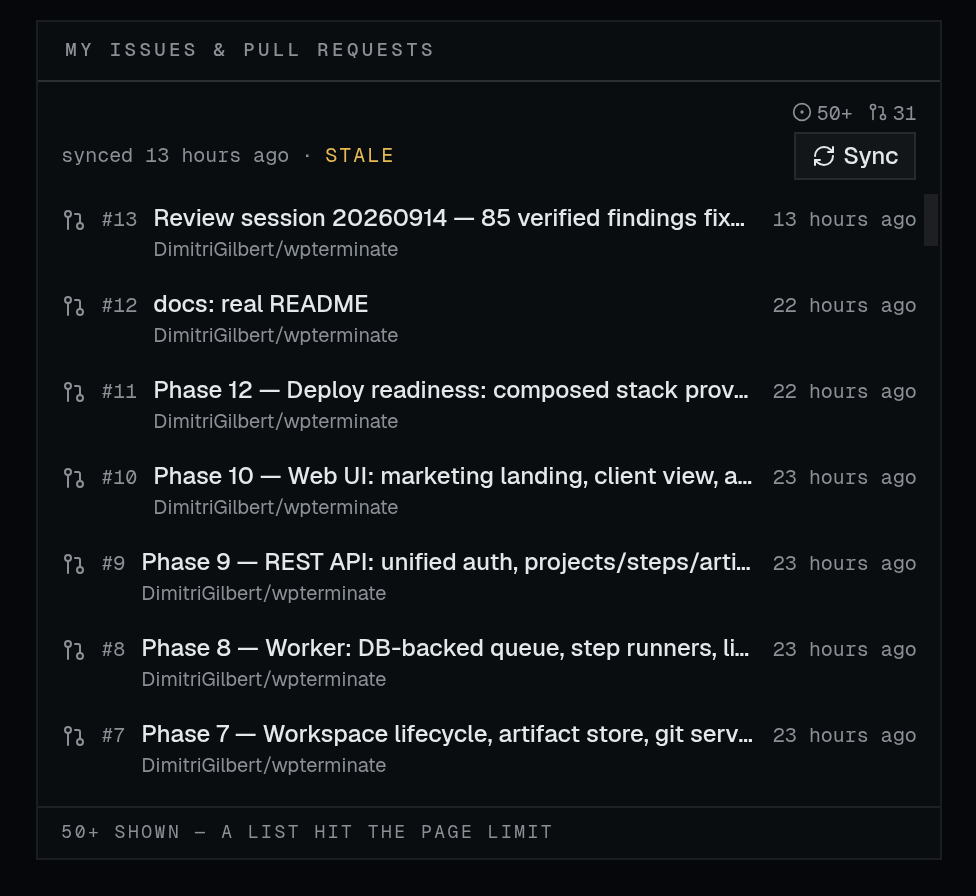
Then press a Sync button. There are three doors, all explicit: the project page's issues & pull requests board, the dashboard's my issues & pull requests feed, and Settings → Forge, where per-repo Sync buttons sit next to a Sync all that sweeps every mapped repo and your feed, one fetch at a time.
Nothing syncs on its own: no polling, no fetch on page load. The guards are the point: a five-minute server-side minimum interval per repo, in-flight dedupe, a single sequential fetch queue, and an availability probe of gh auth status cached for ten minutes. Your rate-limited account is the design constraint, not an afterthought.
Reading the counts: a project's chips and board show repo totals, every open item in that repository as of the last sync. The dashboard feed shows your items, the signed-in account's open issues and PRs across every GitHub repo, workspace or not. A project board with no repo snapshot falls back to your feed items for its slug and says so (“your open items · from your feed”); syncing upgrades it to full totals.
Honesty rules: a capped list reads 50+, a failed first sync shows Never synced with the Sync button, a failed re-sync keeps the last good snapshot and surfaces the error, and data older than an hour is stamped stale, a hint rather than a fetch trigger.
Where your state lives
One sqlite database holds everything the app remembers: roots, pins, notes, hides, open commands, artifact folders, settings, the forge snapshots, and your feed. It lives at $XDG_DATA_HOME/workspace-welcome/workspace-welcome.db (on most boxes ~/.local/share/workspace-welcome/workspace-welcome.db), in WAL mode, embedded: there is no database server.
Coming from an older version? The legacy JSON config ( store.json and the per-project files) is imported once on first boot, in one transaction, and then never written again; the originals stay on disk as untouched backups.
To back up: stop the service, copy the .db file (plus its -wal sidecar if present), start it again. Restore is copying it back. Reports are disposable cache under ~/.cache/workspace-welcome/reports/; the code-server install lives beside the database under ide/. Ideation sessions are the one state that travels differently: they live inside each project under .ideadump/, so they move with the repo.
The settings tour
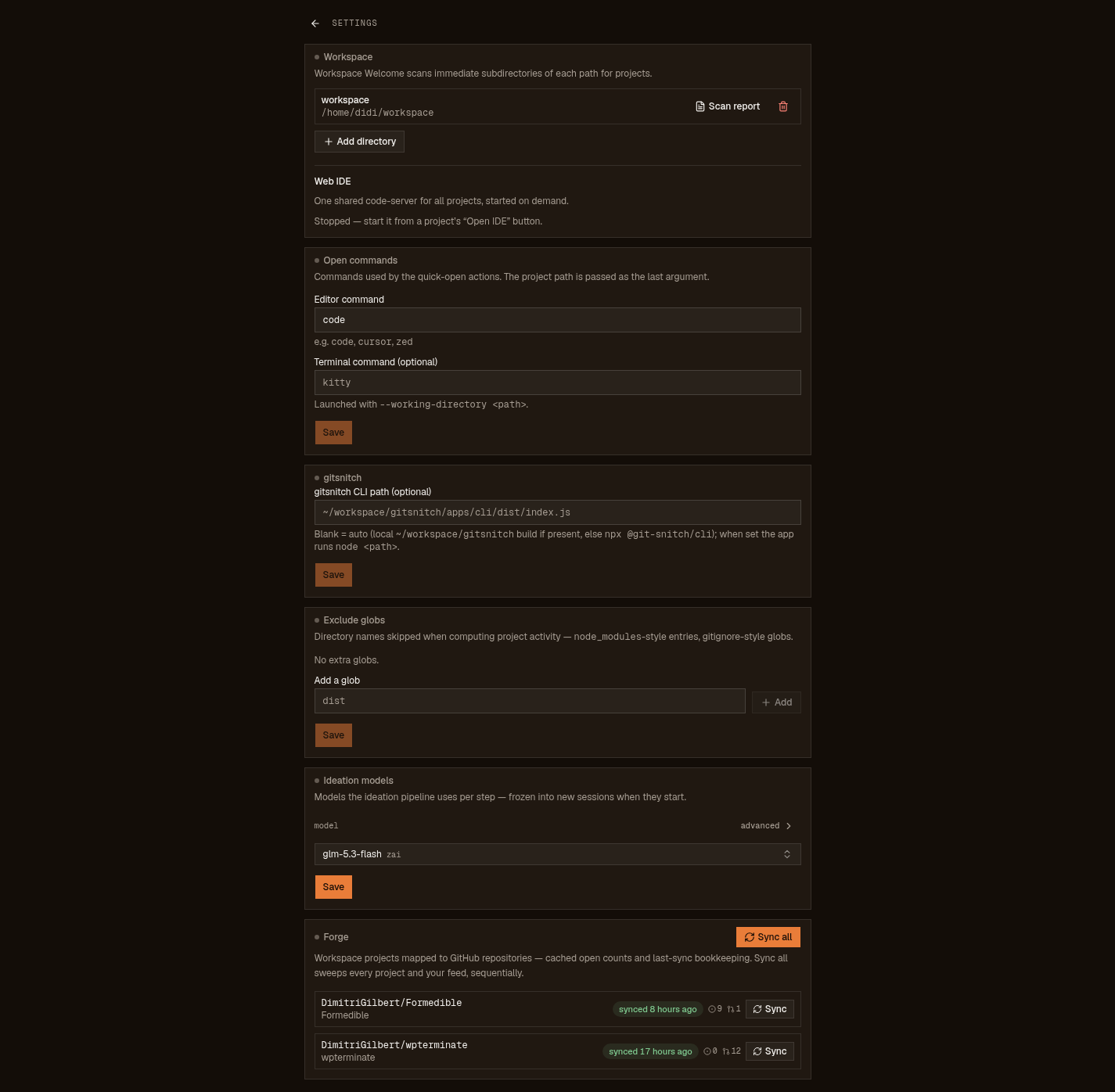
Settings is one page, seven sections, no hidden registry. What each one actually controls:
- Workspace
- Your roots: add or remove directories, run a per-root comparative scan report, and restore hidden projects (the section only appears when something is hidden). Removing a root drops the overrides pinned under it.
- Web IDE
- Status and stop for the one shared code-server instance. It is started on demand from a project's Open IDE button: first use downloads code-server (~100–200 MB, once) into the app data dir.
- Open commands
- The editor and terminal the quick-open buttons use. The project path is passed as the last argument; the terminal is launched with --working-directory. Leave the terminal blank and the app picks the first of the common Linux terminals it finds.
- git-snitch CLI path
- Where the report generator lives. Blank means auto: a local gitsnitch build if you have one, otherwise npx. Set it when you want a specific binary: the app then runs node <path>.
- Exclude globs
- Directory names the scan skips when computing a project's activity date: node_modules-style entries, gitignore-style globs. Use it so a fat build folder doesn't make a dead repo look alive.
- Ideation models
- The models the ideation interview uses per step. Changes are frozen into new sessions when they start: a running interview keeps the models it began with.
- Forge
- The register of every mapped project↔repo link with its cached open counts and last-sync time; per-repo Sync buttons and Sync all. This is the only place that talks to GitHub, and only when you press it.
Paths and the trust boundary (what talks to the network, what never does) are catalogued on Settings & data.
Manual install, upgrading, uninstall
Manual install, for when you will not pipe curl to sh. Every release ships one tarball per platform ( linux/darwin, x64/arm64, -musl for Alpine) plus SHA256SUMS.txt; the releases/latest/download/ URLs redirect to whatever is newest.
version=0.1.0
base="https://github.com/DimitriGilbert/workspace-welcome/releases/download/v${version}"
curl -fLO "${base}/workspace-welcome-${version}-linux-x64.tar.gz"
curl -fLO "${base}/SHA256SUMS.txt"
grep "workspace-welcome-${version}-linux-x64.tar.gz" SHA256SUMS.txt | sha256sum -c -
tar -xzf "workspace-welcome-${version}-linux-x64.tar.gz"
cd workspace-welcome
node serve-prod.mjs
sha256sum -c should print OK (macOS: shasum -a 256 -c -). The server reads PORT and HOST from the environment or a .env next to serve-prod.mjs: defaults 37420 and 127.0.0.1. This is exactly what the installer automates.
Upgrading: re-run the installer; that is the whole path. Your .env and your data survive, and the previous version is kept at app.bak for rollback; delete it once you're happy. Pin a version with --version vX.Y.Z.
Uninstall: --uninstall stops and removes the service and the app but keeps your config, cache, and data. --purge --yes removes all of it.
curl -fsSL https://welcome-workspace.dbuild.dev/install.sh | sh -s -- --uninstall
curl -fsSL https://welcome-workspace.dbuild.dev/install.sh | sh -s -- --purge --yes
Running it day to day
Service controls and logs (Linux installs):
systemctl --user status workspace-welcome
journalctl --user -u workspace-welcome -f
Change the port after install by overriding the unit's environment: systemctl --user edit workspace-welcome, add Environment=PORT=5050 under [Service], then daemon-reload and restart. On a headless box, enable linger or the service dies at logout: sudo loginctl enable-linger $USER.
Port busy at install time? --port N picks another. A SHA256 mismatch aborts before anything is installed; the download was corrupted, re-run the installer. Everything else lives in the journal.